User guide
How AI Memory Vault works
AI Memory Vault stores the notes that explain your work and lets the AI apps you choose read and update them. This guide covers what’s inside, start to finish.
1. Your vault
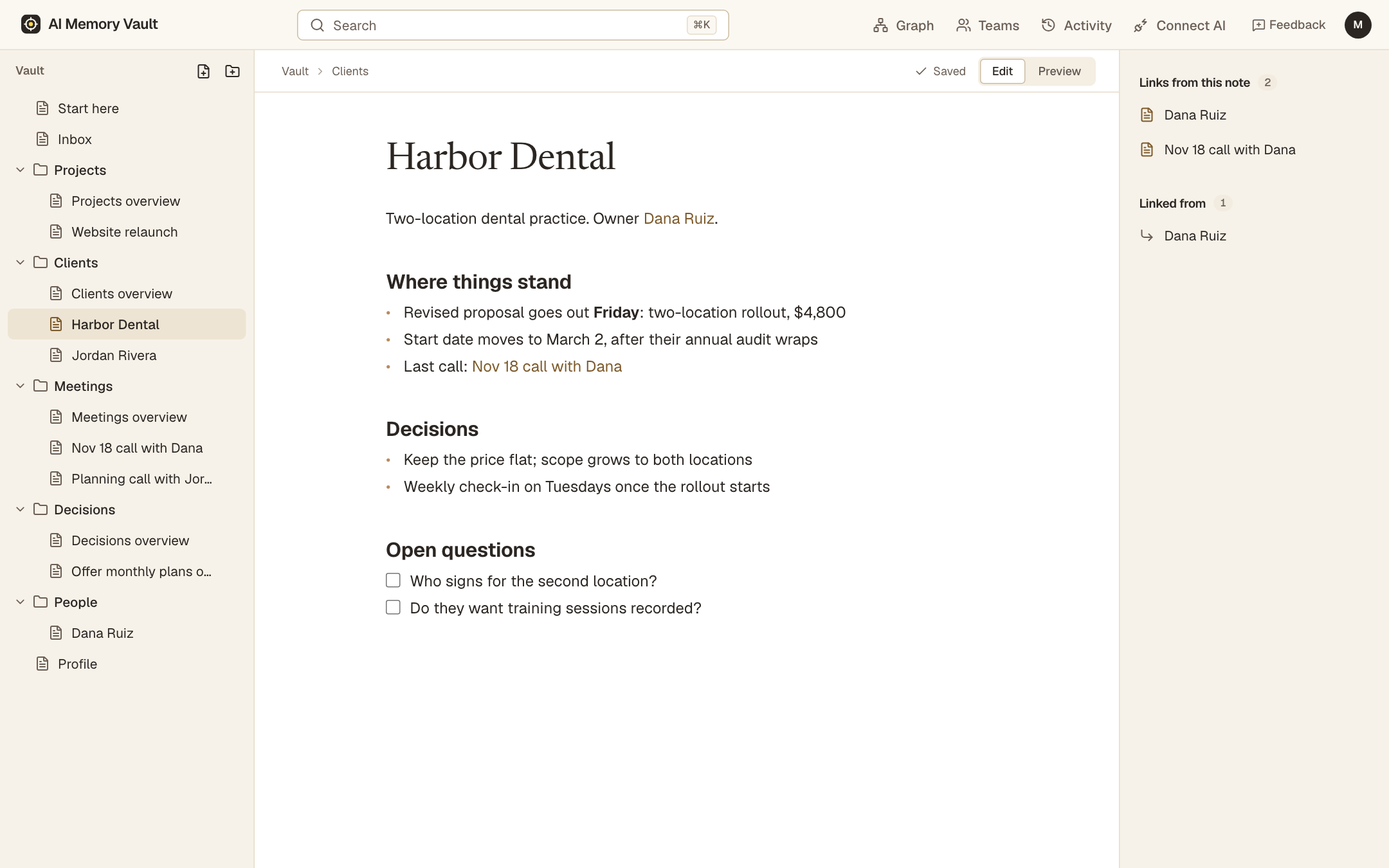
A vault is a set of plain Markdown notes in folders: one note per client, project, person, meeting or decision. Notes link to each other with [[wiki links]], and each note shows which notes link to it.
You can write in it like any notes app. It saves as you type, and search (Ctrl K or ⌘K) finds any note by its title or text.
2. Getting started
- Create your account with the email address your invite was sent to.
- Answer a few questions about what you do and what you want kept straight. It takes about two minutes.
- Open your vault. It starts with folders that fit your answers and a Start here note that tells your AI how the vault is organized.
Add a note for each client or project you’re working on now. A few lines each is enough to begin with.
3. Connecting an AI app
AI Memory Vault works with Claude, ChatGPT, Claude Code, Cursor and other apps that support the Model Context Protocol (MCP).
- In AI Memory Vault, open Connect AI. It shows one address and the steps for each app.
- Paste the address into your AI app where it asks for a connector or MCP server.
- The app sends you to AI Memory Vault to sign in. You see what the app will be able to do, and choose Allow or Deny.
Once connected, your AI can look up the notes that matter before it answers, and save what it learns: a decision, a call summary, a new contact.
You can connect more than one app. They all read the same vault. Disconnect any of them from Connect AI, and its access stops at once.
Every connected app follows the same built-in playbook: save what will matter later, keep each fact in one place, link related notes, and ask before cleaning up. Connect AI shows the exact instructions your AI receives.
4. Ready-made commands
Your vault comes with four commands your AI app can run for you:
- Set up my vault. A short interview, one question at a time, that fills your vault with what your AI should know about your work.
- Save this conversation. Files what’s worth remembering from the current chat, adding to existing notes instead of making duplicates.
- Tidy my vault. Lists duplicates, out-of-date notes and missing links, each with a suggested fix. Nothing changes until you say which fixes to apply.
- Catch me up. A short briefing on one client, project or person: where things stand, open commitments and the latest decisions.
Apps that support ready-made commands list them with their other commands. In any app, you can also ask in your own words, for example “Catch me up on Harbor Dental.”
5. Reviewing what your AI changed
Every change an AI app makes is recorded in Activity: which app, which note, when, and the reason it gave. Open a change to see exactly which lines were added or removed.
If a change is wrong, choose Undo and the note goes back to how it was.
6. Team vaults
A team vault holds the ground rules a whole team shares: how you work, policies, coding standards, who owns what, a glossary and past decisions. Every member’s AI reads it alongside that person’s private vault.
- Members suggest. A member, or their AI, suggests a change. Every member can see pending suggestions.
- Owners and maintainers decide. They accept, edit or reject each suggestion.
- Everything is logged. Every change to the team vault is logged and can be undone.
- Your personal vault stays private, even from your team. Only members can see a team vault.
For engineering teams, the team vault is a good home for architecture notes, coding standards, and review and deploy rules, so everyone’s Claude Code or Cursor works from the same rules.
7. Using it on another computer
AI Memory Vault runs in your browser and your notes are stored with your account, so there is nothing to install or sync. Sign in on any computer and the same vault is there.
AI apps reach your vault over the internet too. An app you connected keeps working whichever computer you use it from, as long as you’re signed in to that app with the same account.
8. Your data
- Your personal vault is private to you. No other account can see it, including your team’s. A team vault is visible only to its members, and there are no public pages.
- Never used to train AI, and never sold.
- Stored on Amazon Web Services in the United States, in a database that isn’t reachable from the public internet.
- Two-step sign-in, if you want it. Turn it on from the Account page and signing in takes your password and then a 6-digit code from an authenticator app on your phone. You get backup codes for when you don’t have your phone.
- Deleted when you ask. Send a note with the Feedback button and we’ll delete your account and everything in it.
The privacy notice and the terms of service have the details.
Ready to try it?Start with a 14-day free trial. No card needed to start. Then $12 a month, or $12 per person per month for teams.
Start your free trial